 Broadcast Cam
Your control room, on a tablet or your computer
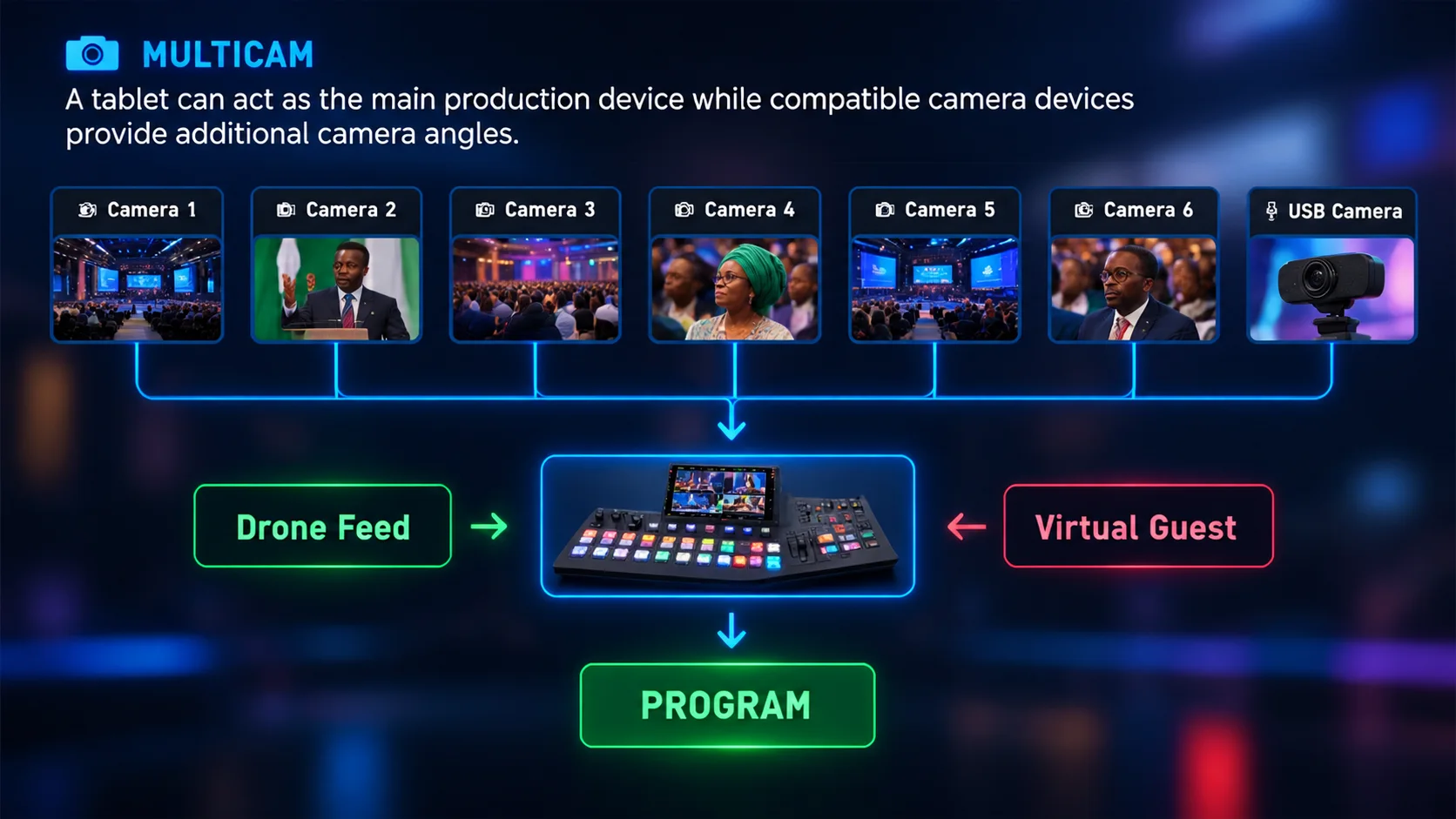
Multicam turns an Android tablet, an iPad, or a Windows or Mac computer with the Broadcast Cam Multicam Desktop Companion, into a live production switcher. Phones become wireless cameras, a drone becomes one of your shots, and you choose what your audience sees. Coming with FULL SUITE on 14 February 2027.
Multicam arrives in
Multicam is available now with FULL SUITE.
14 February 2027, 00:00 (Lagos time, WAT)
NDI® is a registered trademark of Vizrt NDI AB. Broadcast Cam is not affiliated with or endorsed by Vizrt. NDI® output comes with the Multicam Desktop Companion in FULL SUITE, from 14 February 2027.
Four simple steps
Open your control room
Open Multicam on the tablet, or start the Desktop Companion on your computer and enter your Permission Key.
Phones join as cameras
On each phone, open Wireless Camera. It finds the control room on the same Wi-Fi and takes a camera slot.
Line up the next shot
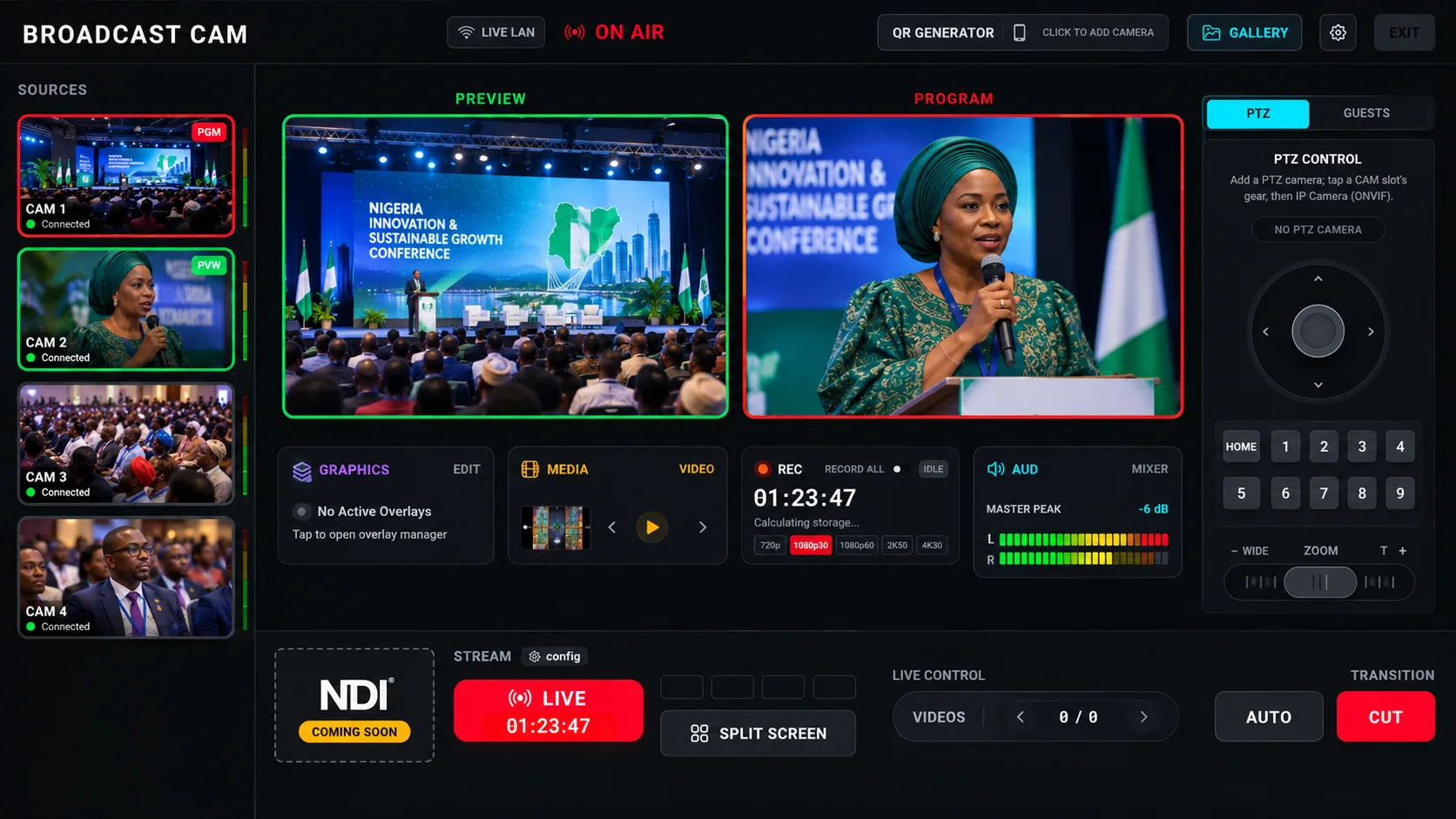
Put a camera in Preview (green). When you're ready, cut or fade it to Program (red).
Record, stream or send it on
Record the show, stream it to your platforms, or send the program to a screen, a switcher or, from the Desktop Companion, over NDI®.
The Multicam Desktop Companion
No high-end tablet? Run Multicam on the Windows or Mac computer you already have. The Desktop Companion is the same Multicam, with the extra connections only a computer can offer: NDI®, capture cards and a full Multiview screen.
No sign-in on the computer. When you choose Multicam on a phone, ask for a Permission Key. Type it into the Companion and it unlocks for your account. Then choose a Horizontal or Vertical production.
K7Q2-M9XA-4RT8- Up to 5 keys at a time; each lasts 24 hours
- See which computer used a key and for how long, in the app's Settings
- Turn a key off and the production using it stops
Windows and macOS, from 14 February 2027.
System requirements
| Minimum | Recommended | |
| System | Windows 10 or 11, 64-bit | Windows 11, 64-bit |
| Processor | 4 cores / 8 threads, 3.0 GHz or faster (e.g. Intel Core i5/i7 4th gen desktop, Core i5 8th gen laptop or newer, AMD Ryzen 5) | 6 cores or more, or a graphics card with a video encoder |
| Memory | 8 GB | 16 GB |
| Graphics | DirectX 11 | NVIDIA GTX 950 or newer, Intel 6th gen graphics or newer, or AMD RX 400 or newer (hardware video encoder) |
| Storage | Any drive | SSD (needed for Lossless / Uncompressed recording) |
| Upload | Your stream's bitrate × number of destinations × 1.25 (e.g. two 720p streams at 1.5 Mbps = 3.8 Mbps) | |
| Runs | 720p to up to 3 destinations; recording as a copy of the stream | 1080p to 3+ destinations with a separate recording quality |
Performance depends on your device. Like any live-production software, how smoothly Broadcast Cam runs on a phone, tablet, laptop or desktop depends on that device’s hardware. Some phones can’t run their front and rear cameras at the same time, so dual-camera VLOG isn’t available on them, but they still work as a Wireless Camera, in UNI CAM, and in USB CAM on devices that support USB OTG. Try everything free for 7 days to see how your devices perform.
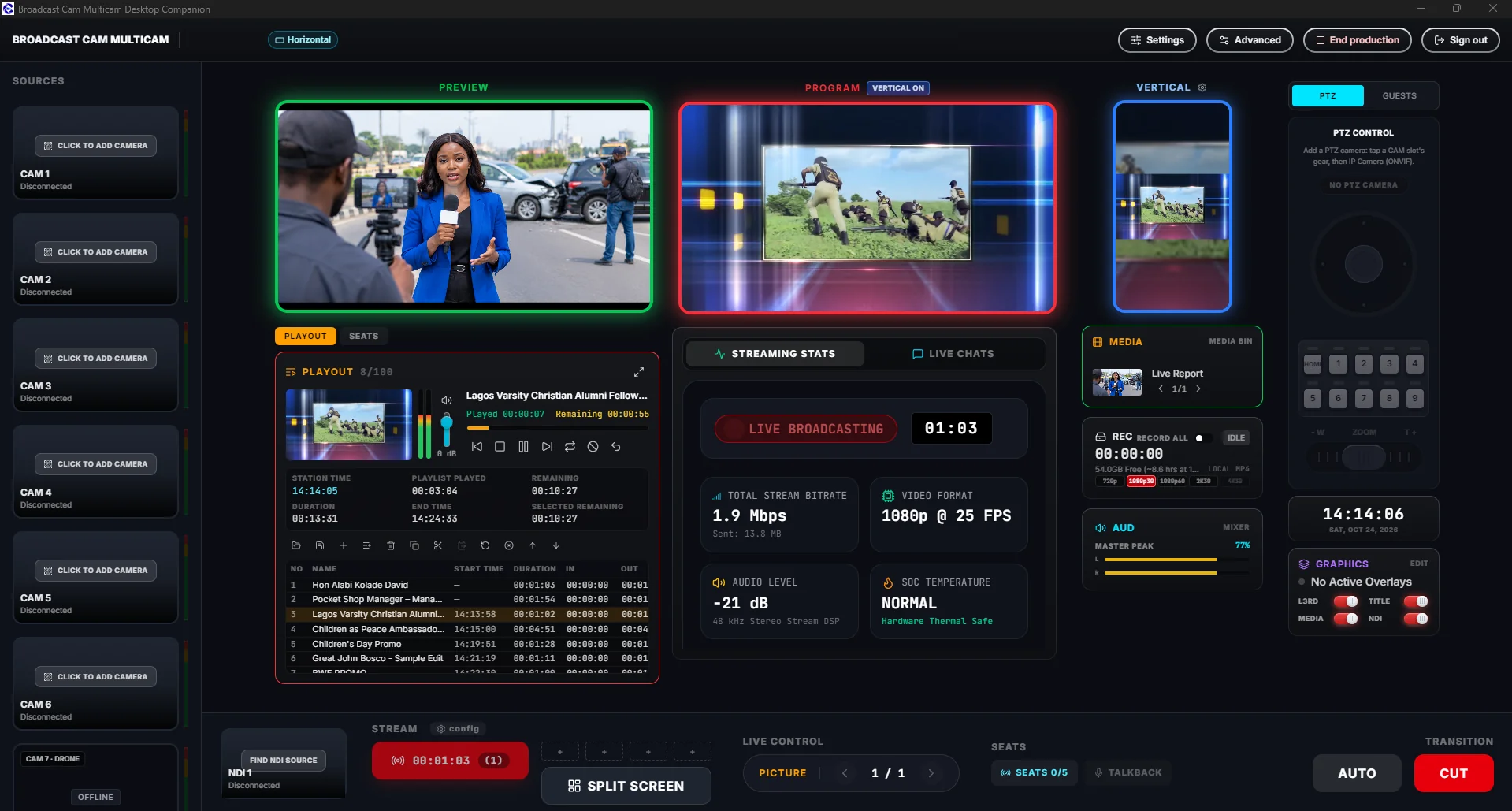
Every source you can bring in
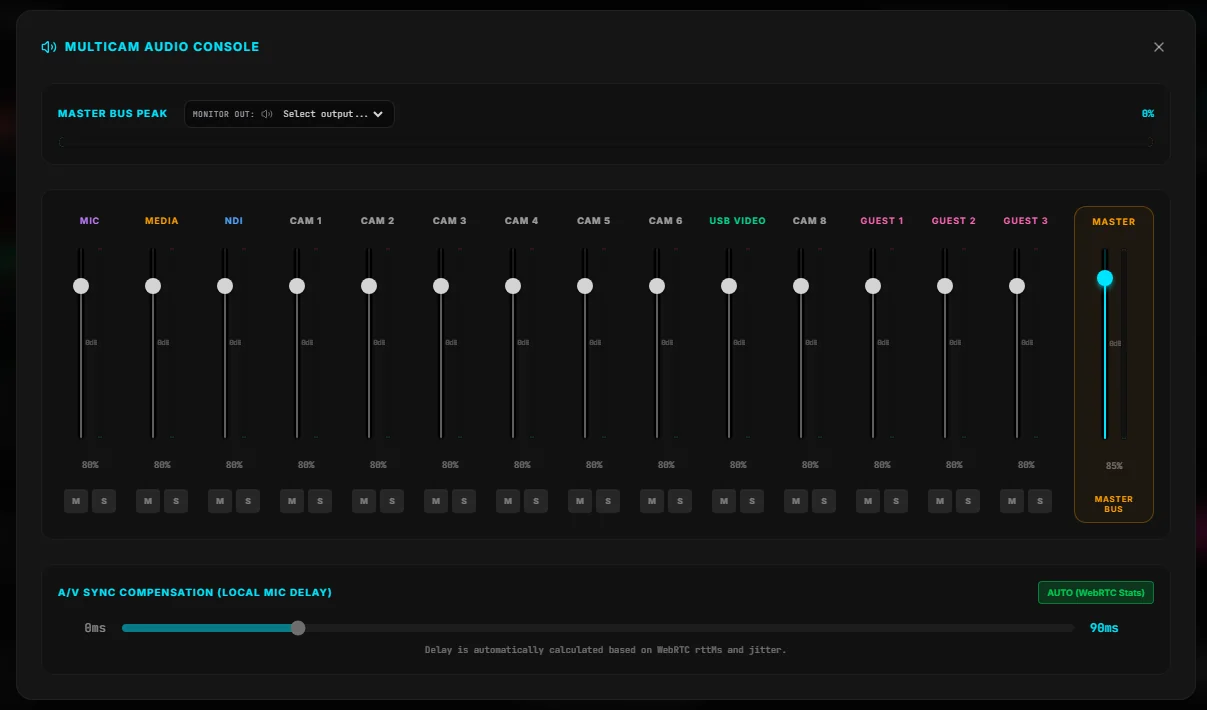
Add sources in any order from the Source List in the Desktop Companion. Each one gets its own track in the audio console.
- PhonesPhones running Wireless Camera on your Wi-Fi, with a pairing code. A phone can also send its screen with screen mirroring.
- USB camerasUp to four USB cameras or capture devices, each with its own sound.
- DroneAny drone app that can stream live to a custom address (RTMP).
- NDI®Any NDI source on your network, listed for you to choose.
- Studio Director seatsUNI CAM and USB CAM phones that join from the app, with FULL SUITE.
- PlayoutYour videos and media, on cue.
- PTZ / IP camerasPan, tilt, zoom and presets from the switcher. Coming soon
- Video cardsBlackmagic DeckLink cards: SDI cameras in, the program out. Each input follows its camera's signal by itself. In the Multicam Desktop Companion. Other card brands are not supported yet.
- Window and Display CaptureOne app with its own sound, or a whole screen. In the Multicam Desktop Companion.
- Zoom guestsConnect your Zoom meetings, record or stream live like a pro. Each guest on their own audio track. In the Multicam Desktop Companion and in Multicam mode on tablets. Coming soon
Made for the screen your audience uses
Horizontal (16:9) for YouTube, TV-style shows and big screens. Vertical (9:16) for TikTok, Reels and Shorts, with the whole show made tall.
- Split-screen layouts for both shapes: side by side, picture-in-picture, stacked and more
- Lower thirds, logos, tickers and media on every shot
- One audio console for every camera, guest, media file and your microphone
- NTSC or PAL frame rates for your region
Send the program anywhere
On the Desktop Companion, use one output or several at once, as your computer allows.
NDI®1 program out
The finished program, picture and sound, to vMix, OBS, TriCaster or any NDI® receiver on your network. One NDI® camera and one NDI® graphics source can come in too.
Computer video out
Use your laptop's HDMI or DisplayPort. Show the clean Program on a TV or projector, or a Multiview of all eight cameras with Preview and Program, and run the show from it.
Dedicated device
Send the program out of a Blackmagic DeckLink video card, and bring SDI cameras in through its other ports. The input follows each camera's signal by itself. Currently Blackmagic DeckLink cards only; other card brands are not supported yet.
Live LAN
Open the program in any browser on the same network, including OBS Browser Source and vMix Web Browser input.
Direct from the keyboard or a control surface
When you work from the Multiview, the number keys pick your cameras, and dedicated keys CUT or AUTO-transition from Preview to Program. Prefer buttons? Map them to a stream-deck style keypad, or a MIDI switcher panel with tally lights.
The Companion finds your graphics card by itself and uses it. A dedicated GPU gives the most headroom; on a computer with integrated graphics it still works, with fewer simultaneous outputs.
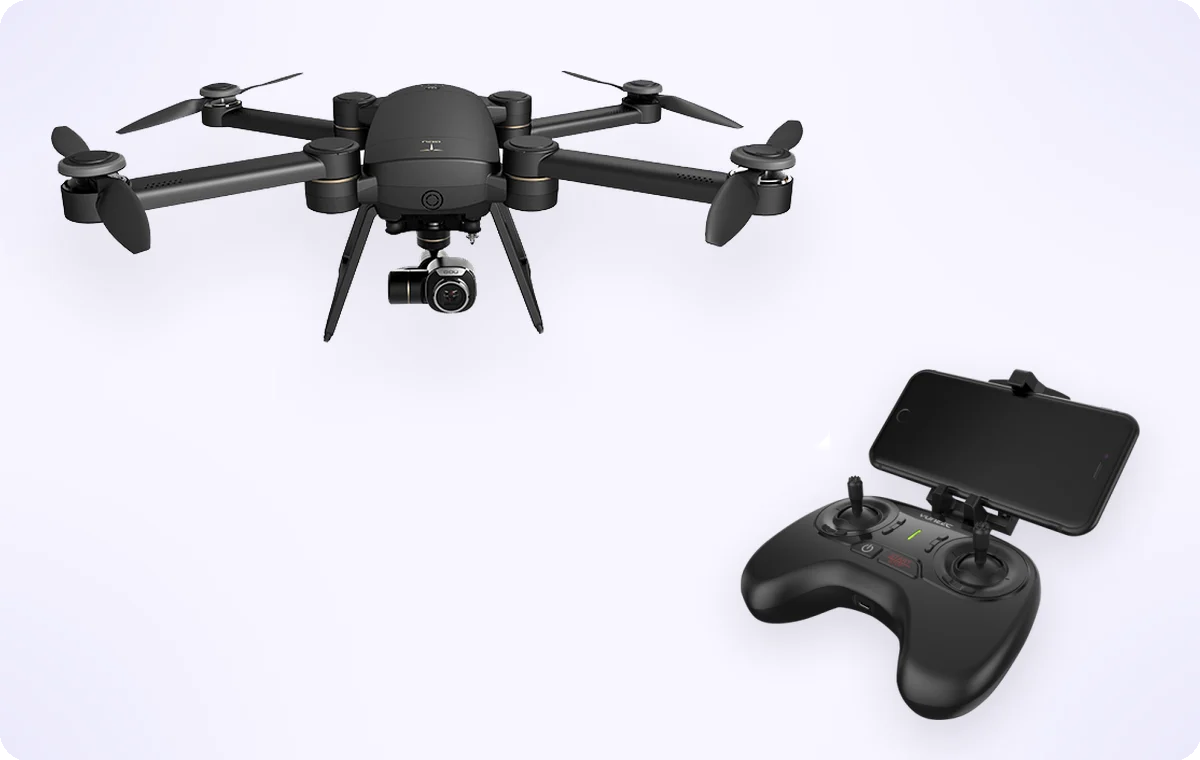
Your drone, one of your cameras
One camera slot is reserved for a drone: CAM 8 on a tablet, CAM 7 in the Desktop Companion. Fly as you normally do, and your aerial shot sits next to your other cameras, ready to cut to.
- Connect your drone controller (or the phone in it) to the same Wi-Fi as your control room.
- Open the drone slot. It shows a streaming address.
- In your drone app, choose live streaming to a custom address (RTMP) and enter that address.
- The drone picture appears in its slot. Put it in Preview, then cut it to Program.
Works with drone apps that can stream to a custom RTMP address. Drone video comes in at up to 1080p. Drone input in Multicam comes with FULL SUITE.
Tips for a smooth show
Use a strong Wi-Fi
A 5 GHz router close to your cameras gives the sharpest, smoothest pictures. Phones show their Wi-Fi quality and choose the best picture size by themselves.
No internet needed for the cameras
Cameras and the control room talk over your local network. You only need internet to stream to your platforms or bring in remote guests.
1. NDI® is a registered trademark of Vizrt NDI AB. NDI® comes with the Desktop Companion and Studio Director (FULL SUITE); the mobile app does not include NDI®. ndi.video
Multicam comes with VLOG MAX and FULL SUITE
One app. One payment. Multiple platforms. VLOG MAX ($27 once) includes Multicam on Android tablets and iPads, with Zoom guests (coming soon). FULL SUITE is a one-time payment of $300 with lifetime access: Multicam on Android tablets and iPads, the Multicam Desktop Companion for Windows and macOS, and Studio Director, from 14 February 2027. Buy it now in the Android app and get every phone mode with no ads straight away.